🎉 4 NEW releases!

Dynamic Planner, holiday cover for conversations, improvements to moving documents, and new task checklist rules
This release brings four updates: a direct connection to Dynamic Planner, cover for your conversations while you’re away, a quicker way to move documents to the right place, and a firm-wide rule for checklist completion.
Dynamic Planner integration
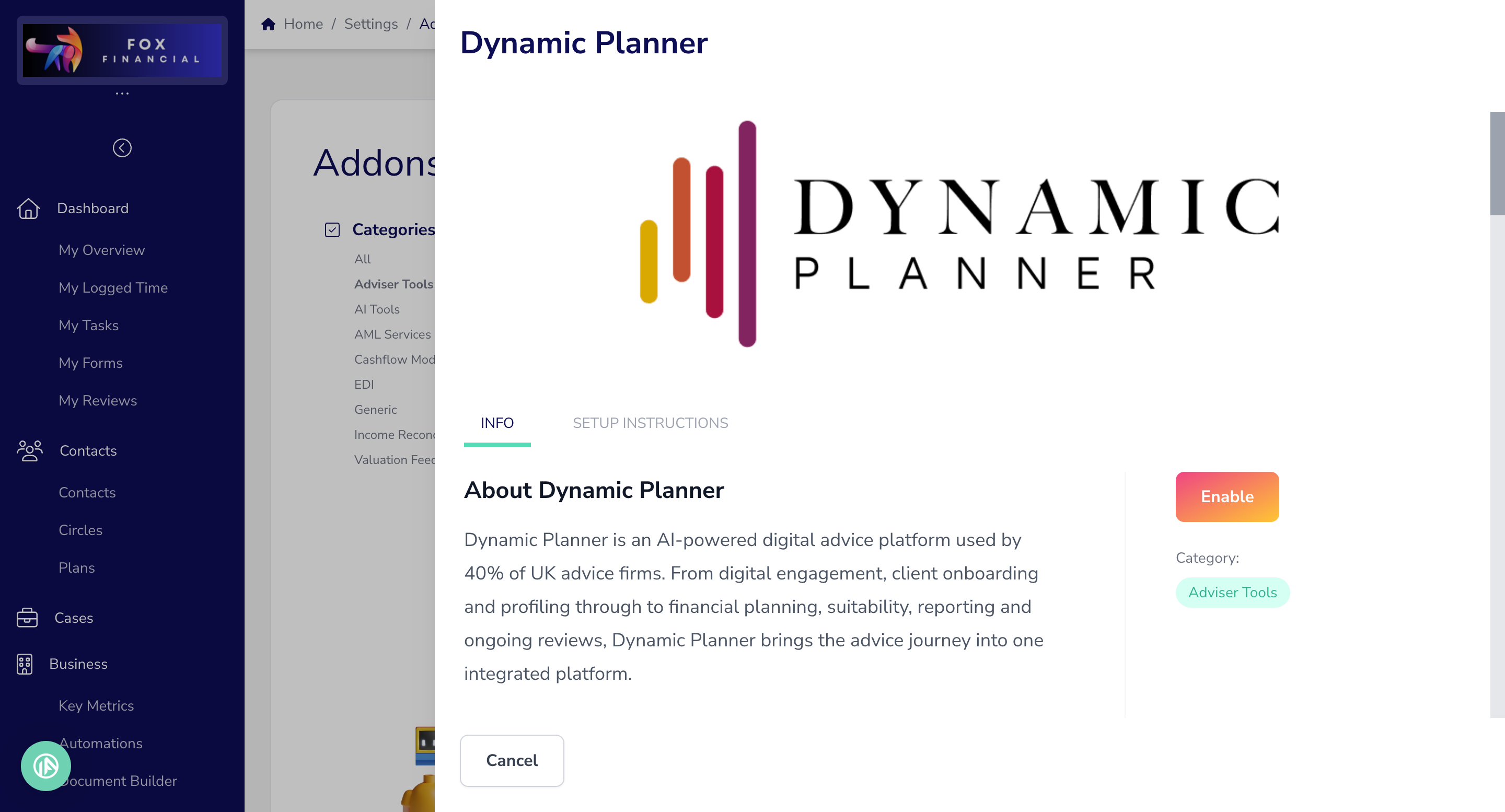
Our integration with Dynamic Planner is now live! Previously, profiling a client meant keying their details into Dynamic Planner, then downloading reports and risk results and adding them back to Plannr by hand.
Plannr now connects directly to Dynamic Planner. From any individual or joint client, or a circle, select Actions > Launch Dynamic Planner. Dynamic Planner opens in a new tab with the client’s details already there. If the client already exists in Dynamic Planner, you’ll see both sets of details side by side with any differences highlighted. You can then update the Dynamic Planner record or keep it as it is. When you finish profiling, the risk number, the risk description and any notes are saved to the client’s Risk tab automatically. Reports you save to the Dynamic Planner document store go to the client’s Documents tab.
In practice, that means no more rekeying, exporting or importing, and your risk profiles and suitability evidence sit against the right client without anyone filing them. At this stage, personal and contact details are sent to Dynamic Planner. To get started, an Owner or Admin enables the add-on under Settings > Addons > Dynamic Planner. Each adviser then connects their own Dynamic Planner account the first time they launch it. You’ll need a valid Dynamic Planner licence.
Holiday cover for conversations
Out of Office could already send clients an auto-reply while you were away, but the conversation then just waited for your return. Nobody else was told the client had replied, and the auto-reply counted as a response, so it was easy for messages to go unanswered.
You can now choose a colleague to cover your conversations while you’re away. Set this in the new Cover field under Settings > Account > Out of office. Firms can also set a Default cover under Settings > Firm > Conversations, which applies to anyone who hasn’t chosen their own. When a client messages a conversation you’re part of while you’re away, your cover is added to that conversation and gets the usual new-message notification. If your chosen cover is also away, Plannr uses the firm default instead. There’s also a new Awaiting reply view in the conversations panel. It lists every conversation where the client spoke last and nobody at the firm has replied yet. Auto-replies don’t count as a reply.
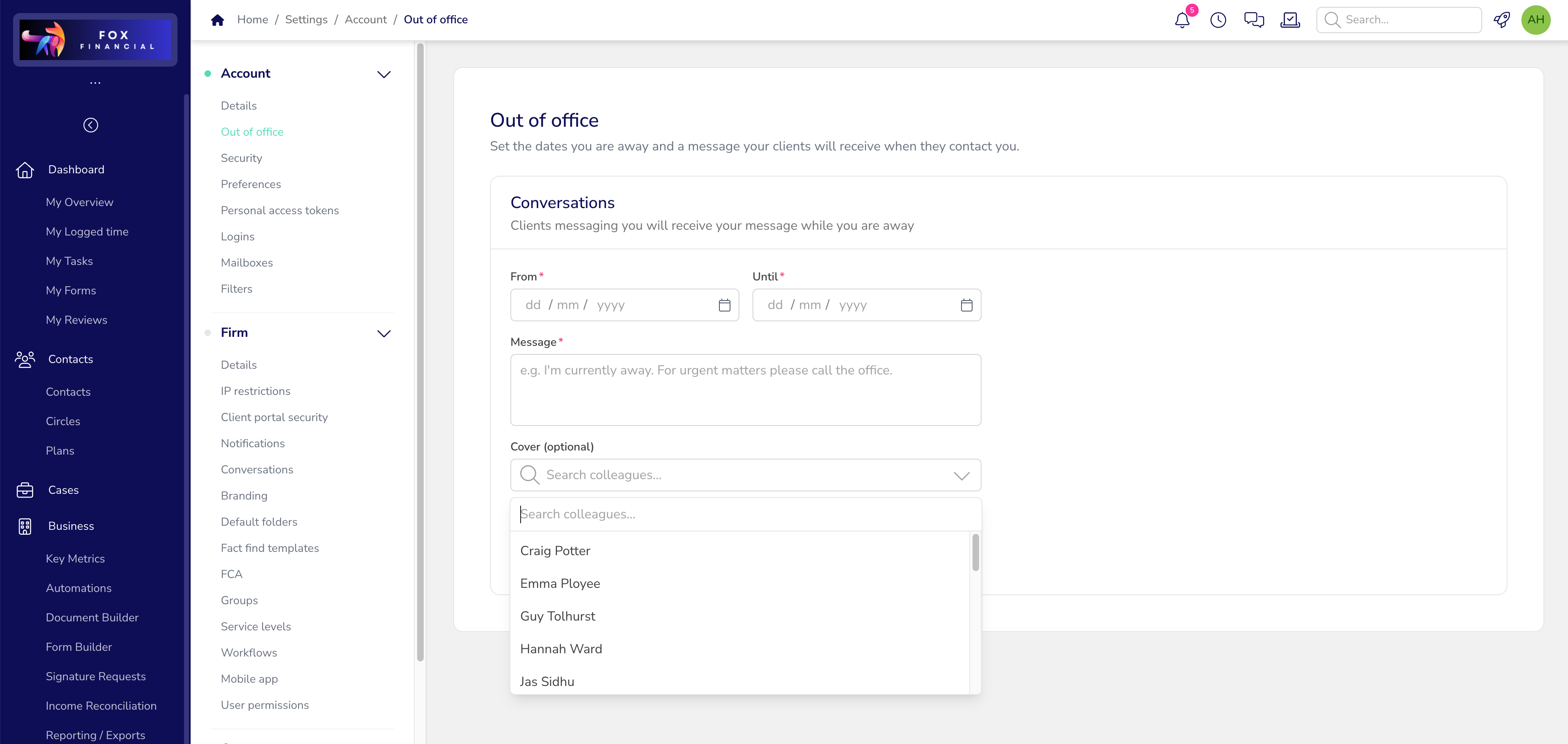
In practice, clients still get your auto-reply, but now a real person picks up their message too. Cover is only added to conversations where a client actually writes in, so quiet threads aren’t touched. Your team also gets one clear list of everything still waiting for a reply.
Moving documents between clients, plans, cases and circles
Documents often end up in the wrong place, such as a suitability report in a client level folder rather than the case it relates to. Fixing that meant downloading the file and uploading it again in the right place, which left duplicates behind.
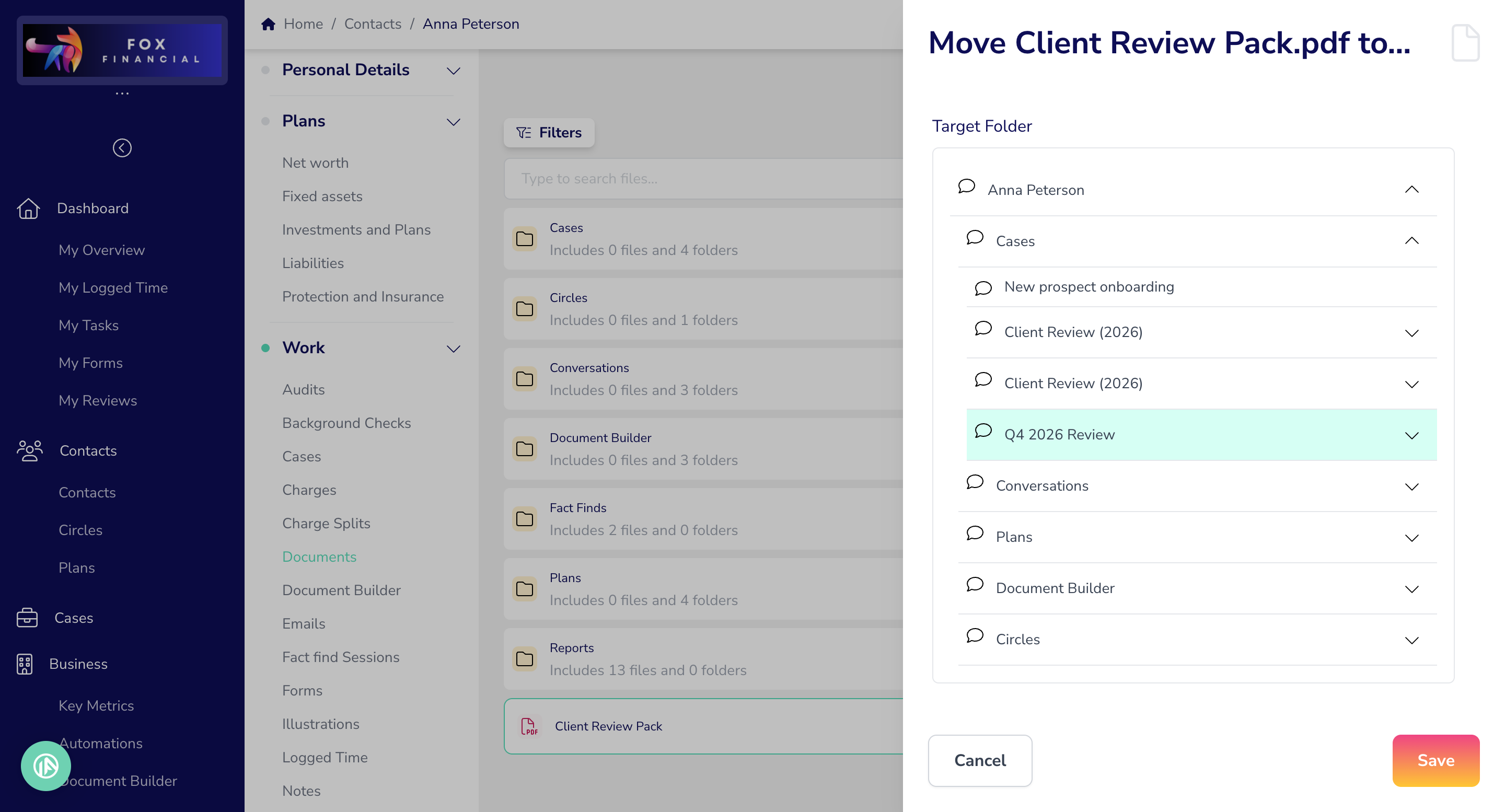
You can now move files and folders to wherever they belong: a client’s own documents, a plan, a case or a Circle. Choose Move on a file or folder, expand the folder tree in Target Folder, select where it should go, and click Save. Moving a folder moves everything in it, and nothing is left behind in the old location. Open Documents from the client’s profile so you can see all of their plans, cases and Circles in the picker.
New: Circle documents (client portal):
Documents on a Circle was greyed out before. Clients with Read or Write circle access now see the circle's own client-readable folders, never other members' individual folders.
Write access lets clients upload, create folders and move files within the circle.
In practice, tidying up a client’s file takes a few clicks, and household paperwork can go straight into a shared Circle where authorised members can see it in the portal. Moving a document changes where it belongs, which can change who can see it. If you move something into a Circle, check the member’s Circle Access and the folder permissions afterwards.
Require checklist items to be completed before completing a task
Checklists on tasks were a guide rather than a rule. A task could be marked complete with checklist items still unticked, which made it hard to be sure every step had actually been done.
There’s a new firm-wide setting under Settings > Tasks > Checklists & Task Completion. When you switch on Require all checklist items to be completed before a task can be completed, every item across every checklist on a task must be ticked before the task can be closed. If anything is still outstanding, Plannr shows: “The task cannot be completed as it has incomplete checklist items.”
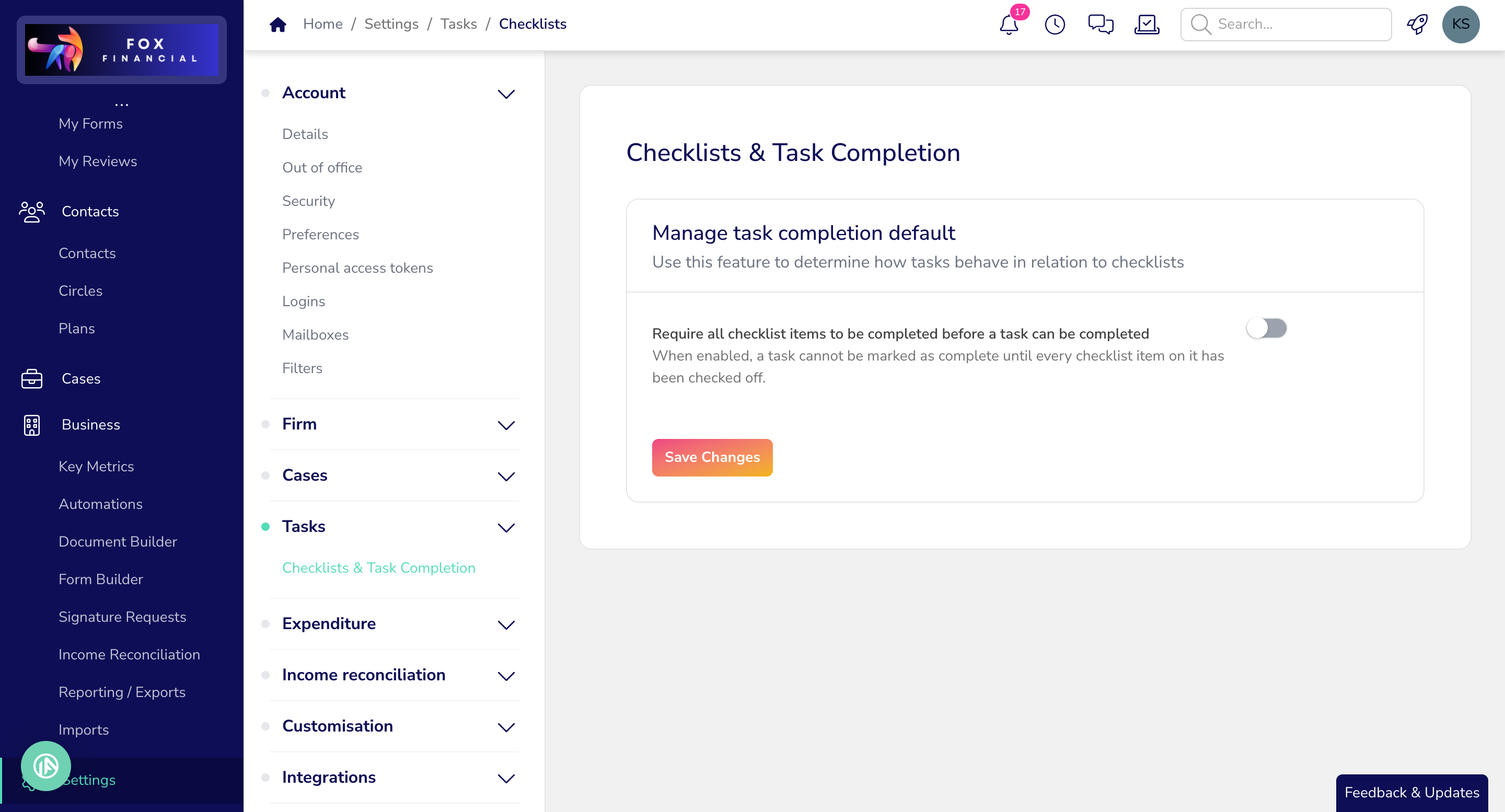
In practice, firms that rely on checklists for compliance steps can be sure nothing is skipped. The setting applies straight away to existing open tasks as well as new ones. Tasks without checklists aren’t affected. The setting is off by default and you can switch it off again at any time. It works alongside the separate Tasks & Case Completion setting, which controls whether outstanding tasks stop a case being completed.
Some useful updates to Plannr this week that enhance how you’re working day-to-day! Keep your eyes peeled for more releases coming soon 👀