🎉 New transactions importer, premiums in Inflows & Outflows, adviser filters on plans, and a new Holdings API endpoint!

This release brings four updates: a new way to import transactions in bulk, Premiums shown on their own in the Inflows & Outflows widget, adviser filters on the Plans page, and a faster way for integrations to fetch holdings.
Transactions importer
Previously, adding transaction history to Plannr meant entering each transaction by hand. That was slow when moving data from another system or filling gaps in a provider feed, and there was no way to correct lots of transactions at once.
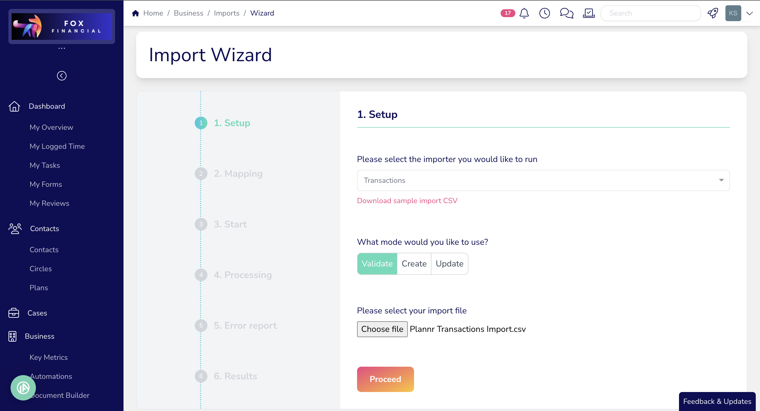
You can now import transactions from a CSV file. Go to Business > Imports, start a new import and select Transactions. Choose Validate to check your file without changing anything, Create to add new transactions, or Update to change existing ones using their transaction UUID. Upload your CSV, map the columns to Plannr fields (or reuse a previous mapping) and start the import. A sample CSV is available in the import wizard. New transactions are saved as Completed and stay editable. When updating, you only need the transaction UUID and the fields you want to change. Anything left blank keeps its current value.
In practice, that means transaction history can go in all at once rather than row by row. Each row is checked separately, so valid rows are saved even if others fail. Download the Excel error report to see which rows failed and why, then re-upload only those rows so the successful transactions aren’t created twice. The importer doesn’t spot duplicates, and it keeps amounts exactly as you enter them, including whether they’re positive or negative. Check your file against the history already in Plannr before you import.
Premiums in Inflows & Outflows
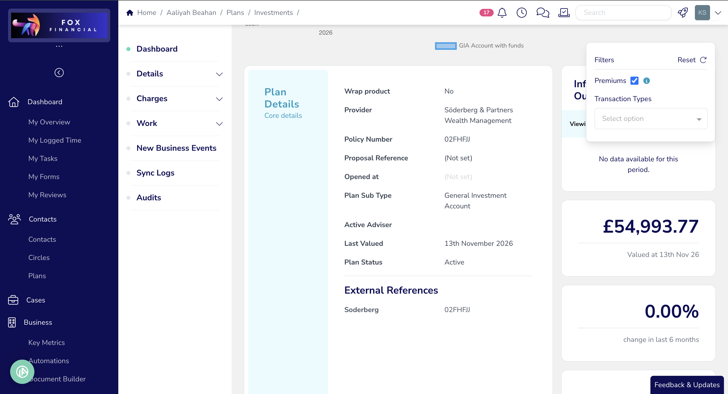
Previously, the Inflows & Outflows widget only showed results when there was an inflow or outflow transaction in the period. A period with premiums but no transactions showed No data available for this period. Deselecting every Transaction Type also brought all types back in, so you couldn’t view premiums on their own.
Premiums now works as its own filter. Deselect all Transaction Types and leave Premiums selected. Inflows and Outflows show £0.00, and the Overall Total equals the premiums for the period, even if there are transactions in that period. Results now show whenever there are qualifying premiums, without needing any transactions. The widget shows (filtered) with a Reset option, and the explanatory text makes clear that the total includes premiums.
In practice, you can see a client’s premiums for any period without transactions getting in the way. For example, a period with £500.00 of premiums shows an Overall Total of £500.00. Premiums are worked out exactly as before, using the premium information held against Investments & Plans and the same date range, plan type and frequency rules.
Filter plans by adviser
Previously, the Plans page could only be filtered by Seller, and only by typing a name. There was no way to see one adviser’s book of plans without opening each client.
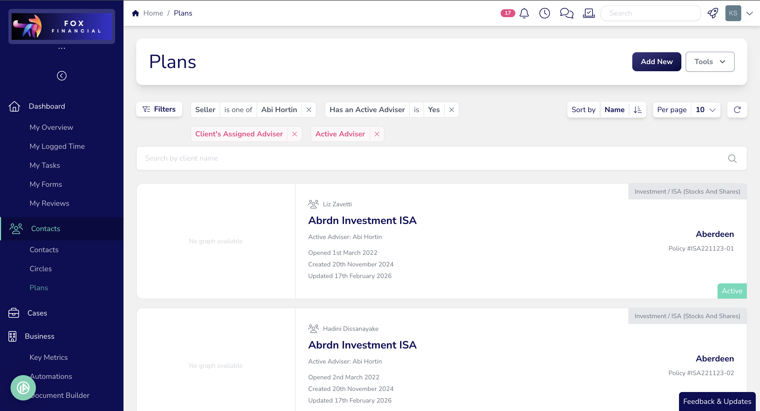
There are three new filters on the Plans page: Active Adviser, Client’s Assigned Adviser and Has an Active Adviser. The Seller filter now uses the staff picker too. Open Plans, add a filter and pick one or more people from your staff list. The list appears as soon as you open the picker, and you can type a name to narrow it down. For Has an Active Adviser, choose Yes or No. Picking several people in one filter shows plans that match any of them. Using several filters together shows only plans that match all of them..
In practice, you can pull up an adviser’s plans in a couple of clicks and combine that with other filters, such as a tag for clients due a review this month. Joint plans match if either owner has the adviser you picked, and they never appear twice. Deleted staff can’t be picked, so use Has an Active Adviser: No to find a departed adviser’s plans for reassigning.
Holdings API v2: all holdings in one call
Previously, the Plannr API could only read holdings one plan at a time. To get every holding, an integration had to list every plan and then call the API once for each one.
We’ve now added a new endpoint, GET /api/v2/holdings, that returns every holding in your firm in one place. You can filter by plan, sub-account, plan type, provider (including leaving out providers) and updated date. Each holding includes its plan and sub-account identifiers, so you can tell where it belongs. Active holdings are returned by default, and inactive ones are available on request. If you have built against our API and need more details on this new feature, head to our API documentation here: PlannrCRM API documentation
The good news, integration partners and firms with their own systems can sync large books of holdings quickly. It pages through over a million holdings at a steady speed. The endpoint is read only and available to every firm, with no add-on to switch on. The existing v1 holdings endpoints are unchanged, and the usual visibility rules still apply.